Add to Chrome

For ChatGPT, Claude and Gemini

Your AI chat history, saved and searchable.

Hushfold saves your ChatGPT, Claude and Gemini conversations into one library that stays on your computer. Search all of them at once, organise them your way, and export them to Markdown whenever you like. No account. No servers. Nobody else reads them.

Also for Microsoft Edge and Firefox (coming soon)

Free for up to 50 chats · Pro is $23, once · Works in Chrome 138 or later

The Hushfold library showing saved ChatGPT, Claude and Gemini chat history in folders, with the side panel open on the right.

Your best answers are buried in three different chat histories.

The trip plan from ChatGPT, the code fix from Claude, the meeting notes from Gemini: each lives in its own scrolling sidebar, hard to search and easy to lose. Hushfold brings them into one place you own.

Three steps. No sign-up.

  1. Add Hushfold to Chrome.

    It's free, and there's no account to create.

  2. Save chats as you go, or bring in your whole history.

    Click Save next to the chat title on chatgpt.com, claude.ai or gemini.google.com, or press Alt+Shift+S. To catch up on the past, drop in the official export file from ChatGPT, Claude or Google Takeout.

  3. Find anything, any time.

    Search every chat from all three sites at once, from the side panel, the library, or by typing hf and a space in Chrome's address bar.

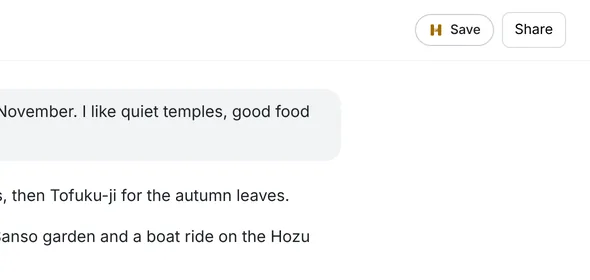
A Hushfold Save button next to the chat title on a chat page.
The Save button sits quietly next to the chat title. Saving again adds only the new messages.

Features

Save in one click, right where you chat

A small Save button appears next to the chat title on ChatGPT, Claude and Gemini. Saving the same chat again adds only the new messages, so your copy stays up to date. Want just one answer? Select the text, right-click, and save only that part.
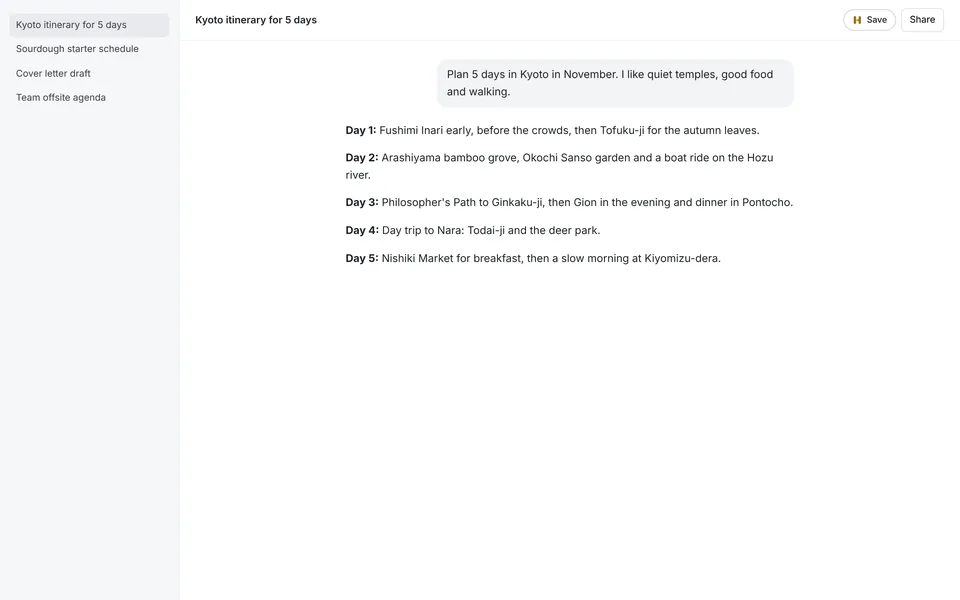
A chat page with the Hushfold Save button at the top right.

Import your ChatGPT, Claude and Gemini chat history in a minute

Download the official export from ChatGPT, Claude or Google Takeout and drop the file into Hushfold. It's read on your computer and nothing is uploaded. Importing the same file again never makes duplicates.

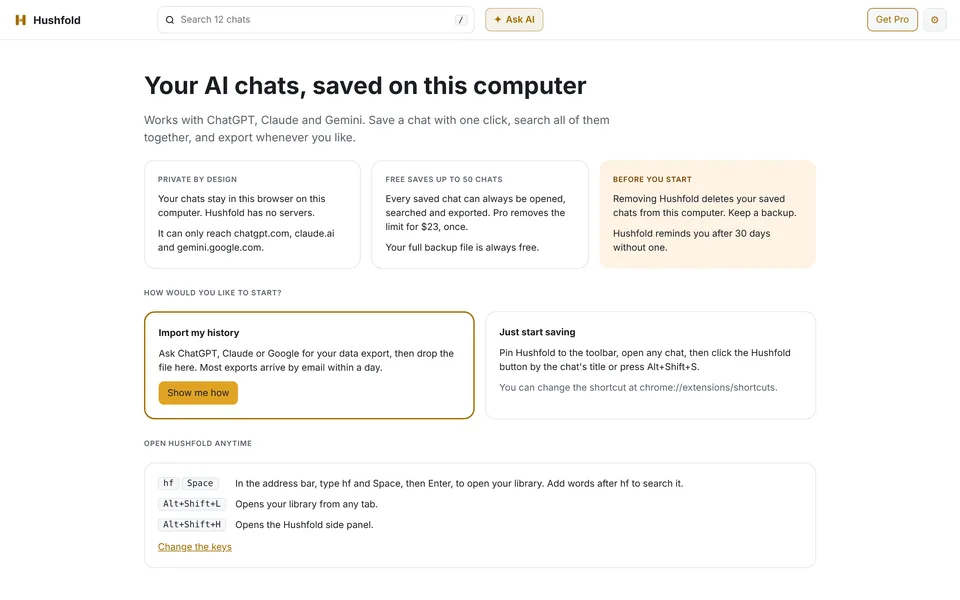
The Hushfold welcome screen with options to save chats or import an export file.

One search box for your whole AI chat history

Search your ChatGPT, Claude and Gemini chats together, in milliseconds, with matches highlighted. Narrow it down to one site, to your own words, or to the AI's answers. It handles accents and Japanese text too. Save any search as a smart folder that keeps itself up to date.

Searching your chat history for 'autumn' finds the matching line in a saved Kyoto trip chat.

Folders, tags, pins and notes

Put chats in folders (each gets its own little emoji), add tags, pin the ones you come back to, and write notes beside them. Auto-tag rules can file new chats for you: for example, anything with "python" in the title goes to your Code folder.

Auto-tag rules that tag and file new chats automatically.

Pull the best answers into one document

Collect answers from many chats into a single Collection, add your own headings and notes, then export it as Markdown or PDF. Ideal for trip plans, research notes and study guides.

A Collection called 'Kyoto trip, November' built from saved answers, with headings and a note.

Ask questions about your own chats, privately

"What did I decide about the Kyoto hotel?" Ask my archive answers from your saved chats and links to the chats it used, so you can check. Summaries give you the gist of a long chat. Both use Chrome's built-in AI, which runs on your computer, so your chats are never sent anywhere. AI answers can be wrong, which is why every answer shows its sources.

Needs Chrome 138 or later on supported hardware. Free includes 5 tries of each.

Your library, one shortcut away

Open the side panel with Alt+Shift+H to search and open saved chats next to the site you're on, without leaving the page.

The Hushfold side panel listing recent chats with a search box.

Export your chats, never locked in

Export one chat, a folder or everything to Markdown (for Obsidian, Notion or any notes app) or JSON, free, always. Make a one-file backup and restore it on another computer. Pro adds PDF export and passphrase-protected backups.

The Backup and export page, with options to export chats to Markdown or JSON and restore a backup.

Private by design, not by promise

Most chat organisers send your conversations to their servers. Hushfold doesn't have any.

  • Stays on your computer.

    Your chats are stored in this browser on this computer, and nowhere else.

  • No account, no servers.

    There's nothing to sign up for. Glintside cannot see what you save.

  • Only three sites.

    Hushfold can only reach chatgpt.com, claude.ai and gemini.google.com, and makes no network requests of its own, not even to check your licence.

  • No tracking.

    No analytics, no crash reports, no ads.

Read the full privacy policy

Tip: Uninstalling Hushfold removes the chats saved in it, so make a backup first if you plan to switch computers or reinstall.

Start free. Pay once if you need more.

Free

$0

  • Save up to 50 chats from all three sites
  • Search, open and read every saved chat
  • 3 folders, tags, pins and notes
  • Export to Markdown and JSON, always free
  • Full backup and restore
  • 5 tries of Ask my archive and 5 summaries
Add to Chrome

Pro

$23, once

  • Unlimited saved chats
  • Unlimited folders, with subfolders
  • Search filters by site, date, folder and tag
  • Smart folders and auto-tag rules
  • Collections
  • Ask my archive and Summaries, unlimited
  • PDF export
  • Passphrase-protected backups
Get Pro

One payment. No subscription. Pro unlocks with a licence key that's checked on your computer, not online. Payments are handled by Paddle; your card statement will show PADDLE.NET* GLINTSIDE. Full refund within 14 days, no questions asked (refund policy).

How to unlock Pro

  1. Install Hushfold free.
  2. Buy Pro and copy your licence key.
  3. Paste it in Hushfold → Settings → Pro.
Compare Free and Pro in full
FeatureFreePro
Saved chats (ChatGPT, Claude and Gemini combined)Up to 50Unlimited
Open, read and search saved chatsAll of themAll of them
Re-save a chat to add new messages✓ Included✓ Included
Import official exportsUp to your free spaceEverything
Search filters (site, date, folder, tag)Not included✓ Included
Folders3Unlimited, with subfolders
Tags, pins and notes✓ Included✓ Included
Markdown and JSON export (one chat, a folder or everything)✓ Included✓ Included
Full backup and restore✓ Included✓ Included
Passphrase-protected backupsNot included✓ Included
Ask my archive (on-device AI)5 tries✓ Included
Summaries (on-device AI)5 tries✓ Included
CollectionsNot included✓ Included
Smart folders and auto-tag rulesNot included✓ Included
PDF exportNot included✓ Included

More details

  • Five languages

    English, Español, Français, Deutsch, 日本語

  • Light and dark

    Follows your system setting

  • Keyboard first

    Alt+Shift+S to save, Alt+Shift+H for the side panel

  • Address bar search

    Type hf and a space

  • Right-click save

    Save just the part you selected

  • Backup reminder

    A gentle nudge if you haven't backed up in 30 days

Questions and answers

Is Hushfold really free?

Yes. Free saves up to 50 chats, and every saved chat can always be opened, searched and exported. Pro removes the limit and adds the extra tools for a single $23 payment.

Where are my chats stored?

In your browser's own storage on your computer. Hushfold has no servers and no account, so there is no copy anywhere else.

Can Glintside read my chats?

No. Nothing you save is ever sent to Glintside or anyone else. The extension can only reach the three chat sites.

Which sites does it work with?

ChatGPT (chatgpt.com), Claude (claude.ai) and Gemini (gemini.google.com).

Can I import chats I had before installing Hushfold?

Yes. Request the official data export from ChatGPT, Claude or Google Takeout, then drop the file into Hushfold. The file is read on your computer and nothing is uploaded. Free users can import up to their free space; Pro imports everything.

What happens when I reach 50 chats on Free?

New saves pause, and nothing you've saved is hidden or locked. You can remove some chats (export them first if you like) or upgrade to Pro. Re-saving a chat you already have always works.

Is it a subscription?

No. Pro is one payment of $23. No renewals.

How does the licence key work?

After you pay, you get a licence key. Paste it into Hushfold → Settings → Pro. It's checked on your computer, so Hushfold never needs to contact a server.

Can I use Pro on more than one computer?

Yes. Your key is for your own computers, and you can paste it into Hushfold on each of them.

Can I get a refund?

Yes, a full refund within 14 days, no questions asked. See the refund policy.

Does Ask my archive send my chats to an AI company?

No. It uses the AI model built into Chrome, which runs on your computer. It needs Chrome 138 or later on supported hardware; Hushfold tells you before you buy if your computer can't run it. AI answers can be wrong, so each answer links to the chats it used.

What if I uninstall Hushfold?

Uninstalling removes the chats saved in it from your browser. Make a backup first (Settings → Backup), and restore it later on any computer.

Does it work in Edge, Brave or Firefox?

Hushfold is made for Google Chrome (version 138 or later). Other browsers aren't supported yet.

Is Hushfold made by OpenAI, Anthropic or Google?

No. Hushfold is made by Glintside and is not affiliated with OpenAI, Anthropic or Google.

How do I get help?

Email hello@glintside.com.

Keep every good answer.

Install Hushfold free and save your first chat in under a minute.

Add to Chrome, it's free

Free for up to 50 chats · Pro $23 once · No account needed